MacOS Tahoe 26.2 new laptop setup for Python developer

Here are my setup notes for configuring a new 16″ MacBook Pro M4 Pro in 2026 using MacOS Tahoe.

Each time I setup a new laptop I make a copy of my notes file from last time. As I work through it I make changes as needed to keep it up to date.  My goal with this round was to install fewer libraries and programs (via brew, etc) and use Docker for as many application dependencies as possible.  These notes sill have Python and Node installed locally, but no databases! On this M4 Pro chip Docker runs VERY fast 🙂

System Preferences

This is mostly a matter of personal preference but there are some important security steps here.

  • Finder Settings
    • General -> New Finder windows show -> set to home folder
    • Sidebar -> Cleanup items in there, add home folder
      • Advanced – Show all file extensions
      • Advanced – When searching, search current folder
  • iCloud
    • Disable in my case   “Save to iCloud” – shut off everything except iMessages
  • Privacy & Security
    • Enable location sharing only for system services (Find My Mac, etc)
    • Enable FileVault (full disk encryption) – was enabled by default
  • Network
    • Firewall Enable Firewall, block all incoming connections
      • CRAZY this is not on by default!
  • Lock Screen
    • Require password after screen saver begins or display is turned off – Immediately
    • Lock Screen Message:  Property of Laurence Gellert?Please contact me at {phone}. IN CASE OF EMERGENCY – call {2nd contact}
  • Mouse
    • Uncheck scroll direction natural (I guess I’m weird in this one way?), speed up tracking speed, set secondary click right side
  • Keyboard
    • Disable the globe key from showing emojis
  • Function keys
    • Set F1, F2 as standard function keys
  • Sounds
    • Disable alert sounds, change alert volume to 2nd lowest
  • Dock
    • Auto hide dock, deselect show recent
  • Cleanup Dock
    • Remove most of the default programs, this is pretty tedious there is probably a better way to do this
  • Display
    • Configure Night Shift
  • Menu bar
    • Show bluetooth icon in menu bar
  • Mission Control
    • Hot Corners… disable all
  • Screenshot preferences
    • (cmd + shift +5), under options, deselect Show Floating Thumbnail
  • Wallpaper
    • Configure wall paper and screen saver to my liking
  • Connect to external keyboard / mouse
    • I’ve found the ProtoArc Backlit Bluetooth Keyboard and Mouse for Mac, KM100-A on Amazon is only $36 and works about as good the official Apple Magic Mouse + Keyboard which is 5x the price. The keys and clicks are quieter. Plus you can charge the mouse while using it. The only gesture I miss is horizontal scroll but that’s not a deal beaker.

Install Applications

  • Chrome
    • Settings -> Select You and Google > Sync and Google services.
    • Toggle off the “Allow Chrome sign-in” option.  I’m okay being signed into gmail.com through the web UI but I personally don’t want to be signed into Chrome itself.
  • Firefox
  • Import bookmarks into Safari, Chrome, FF
  • AdBlock – Install an ad block plugin of your choice on Chrome and Firefox
  • LibreOffice
    • associate docx / xlxs files with LibreOffice (click on file and hit cmd + i to change association)
  • Password manager of your choice
  • iTerm2
    • Updating setting so it exits after last window is closed
    • Dark theme
  • Sublime Text 4
  • MS Teams
  • Zoom
  • Anti-virus – BitDefender is what I use
  • Insomnia REST client
  • Docker Desktop (which includes Docker CLI and Docker Compose)
  • IntelliJ (for Apple Silicon)
    • Manage Subscription and activate license using login
    • Open Registry (Help -> Find Action -> Registry), change
      • undo.documentUndoLimit to 1000
      • undo.globalUndoLimit to 100
    • Install plugins for Python, PHP, AWS, etc (react, markdown, etc already installed)
  • Thunderbird – for local email
    • Copy email to ~/email_thunderbird
    • Start Thunderbird, but don’t import anything, then quit
    • Edit ~/Library/Thunderbird/profiles.ini, put in the following then start it and select Default profile.
      [Profile0]
      Name=default
      IsRelative=0
      Path=/Users/{your user}/email_thunderbird/
      Default=1
      
      [General]
      StartWithLastProfile=1
      Version=2
      
      [Install{some hash value}]
      Default=/Users/{your user}/email_thunderbird/
      
  • Setup VPNs as needed
  • Setup peripherals – printers, scanners, etc

Developer tools

  • GPG
    • https://gpgtools.org/
    • import existing keys via UI, edit and set to ultimate trust
    • Try decrypting backups
  • Remote desktop
    • Import profiles, connect to each, set cert to trust
  • Copy hosts file into place
  • SSH
    • copy files into .ssh folder
      chmod 700 ~/.ssh
      chmod 600 ~/.ssh/*
      ssh-add -K ~/.ssh/{your_private_key}
      

      verify with ssh-add -L
      make sure it comes back on reboot

  • Cron – setup local cronjob – you may not need this but I have a few jobs that run periodically for backups, etc.
    • crontab -e
  • git
    • install .gitconfig file in ~/
  • brew plus common dependencies
    • https://brew.sh/
      Run the install command, then run the commands it tells you to at the end of the install script.
    • Then install these base packages (yours may vary)
      brew install openssl readline sqlite3 xz zlib
  • AWS CLI
    • brew install awscli
      copy in config and credentials files from backup
  • OhMyZsh
  • python + dependencies
    • brew install pyenv pyenv-virtualenv
    • Install whatever versions of python you need, and pick one as the default
      • pyenv install 3.10.19
      • pyenv install 3.12.12
      • pyenv global 3.12.12
    • To verify:
      • restart terminal
      • which python
      • python -V
      • pip –version
    • Install virtualenv and virtualenvwrapper using the pip command tied to the pyenv
      /Users/{user}/.pyenv/versions/3.12.12/bin/pip install virtualenv
      /Users/{user}/.pyenv/versions/3.12.12/bin/pip install virtualenvwrapper
      
      # To enable auto-activation add to .zshrc profile:
      
      export PYENV_ROOT="$HOME/.pyenv"
      export PATH="$PYENV_ROOT/bin:$PATH"
      eval "$(pyenv init --path)"
      export WORKON_HOME=$HOME/.pyenv
      
      VIRTUALENVWRAPPER_PYTHON=/Users/{user}/.pyenv/versions/3.12.12/bin/python
      
      source /Users/{user}/.pyenv/versions/3.12.12/bin/virtualenvwrapper.sh
      export PYENV_VIRTUALENVWRAPPER_PREFER_PYVENV="true"
      if which pyenv > /dev/null; then eval "$(pyenv init -)"; fi
      eval "$(pyenv virtualenv-init -)"
  • node / nvm
    • brew install nvm
    • follow instructions command  it spits out
    • mkdir ~/.nvm
      • Add to the bottom of ~/.zshrcexport
      • NVM_DIR=”$HOME/.nvm”
      • [ -s “/opt/homebrew/opt/nvm/nvm.sh” ] && . “/opt/homebrew/opt/nvm/nvm.sh”  # This loads nvm
      • [ -s “/opt/homebrew/opt/nvm/etc/bash_completion.d/nvm” ] && . “/opt/homebrew/opt/nvm/etc/bash_completion.d/nvm” # This loads nvm bash_completion
    • Restart shell
      nvm -v      # should work
      nvm install 18.17.1
      nvm use 18.17.1
      nvm alias default 18.17.1
      node -v    # should say 18.17.1



Posted in Application Development | Tagged , , | Comments Off on MacOS Tahoe 26.2 new laptop setup for Python developer

Connecting Django to MSSQL as the database

Django + MSSQL works really well thanks to the Microsoft sponsored mssql-django package.  The 1.0 release dates back to Jul 2021, and the current release is 1.6 from August 2025. So it looks like Microsoft is not doing their usual bait and switch where they support an open source initiative for a short time then abandon it.

To get django-mssql running:

Setup your requirements.txt

pyodbc==4.0.39
mssql-django==5.3.0

Note that I strongly prefer to use pegged versions in requirements.txt (with the =={version} part) vs just the package name which will pull the latest release and could introduce problems later.

Install it:

pip install -r requirements.txt

On MacOS I had to do these additional steps to get it working locally:

brew install unixodbc
brew tap microsoft/mssql-release https://github.com/Microsoft/homebrew-mssql-release
brew install msodbcsql17 mssql-tools
pip install --no-binary :all: pyodbc

Configure your database connection in settings.py:

DATABASES = {
    'default': {
        'ENGINE': 'mssql',
        'NAME': 'DATABASE NAME',
        'HOST': 'DATABASE HOST',
        # 'PORT': custom port if needed,   # default is 1433
        'USER': 'DB USER',
        'PASSWORD': 'DB PASSWORD,
        'AUTOCOMMIT': True,
        'OPTIONS': {
            'driver': 'ODBC Driver 17 for SQL Server',     # set to "SQL Server Native Client 11.0" on Windows?
        },
    }
}

I’ve got autocommit set to true here so every SQL statement is automatically committed after it is ran.

Note – don’t store the DB username and password directly in the settings file. Use an environment variables or read from a secrets file.

For making migrations more secure, see my post on that.

From there run your migrations as normal:

python manage.py makemigrations
python manage.py migrate


Posted in Application Development | Tagged , , , | Comments Off on Connecting Django to MSSQL as the database

Hitron CODA56 cable modem upgrade – before and after

I recently upgraded my cable modem from a Motorola MB8600 to a Hitron CODA56.  Reason being Xfinity was emailing me letting me know I could upgrade to DOCSIS 3.1 and get faster upload speeds.

The Hitron CODA56 is the cheapest model on Xfinity’s list of DOCSIS 3.1 supported modems. I paid $140 on Amazon.

Setting it up took 10-15 minutes most of which was waiting for it to reboot.

Here are the before and after speed test results from my office which is about 25 feet from the wifi router.

Before 145 down, 17.5 up.


AFTER – 173 down, 129 up!


So a measured gain of 7.3x on upload speed. Download speed is faster as well but I’m not going to worry about that too much.

This makes pushing my cloud backups so much faster.

If I upload 10GB worth of backups per month, here is the time savings breakdown:

  • 129 Mbps / 8 = 16.125 MB/s
  • 10GB = 10,000 MB
  • 10,000 MB / 16.125 MB/s = 615 seconds to upload that much data (about 10 minutes)
  • At the 7.3x slower speed it would be 73 minutes to push the same files
  • So the CODA56 will save about an hour a month. Sure I can do other things while the backup is running, but sometimes the backup stalls if my laptop goes to sleep which is a pain.

This upgrade was well worth it!

Posted in Fun Nerdy, Sys Admin | Tagged , , | Comments Off on Hitron CODA56 cable modem upgrade – before and after

How To Make Python Code Run on the GPU

As a software developer I want to be able to designate certain code to run inside the GPU so it can execute in parallel. Specifically this post demonstrates how to use Python 3.9 to run code on a GPU using a MacBook Pro with the Apple M1 Pro chip.

Tasks suited to a GPU are things like:

  • summarizing values in an array (map / reduce)
  • matrix multiplication, array operations
  • image processing (images are arrays of pixels)
  • machine learning which uses a combination of the above

To use the GPU I’ve chosen to render the Mandelbrot set. This post will also compare the performance on my MacBook Pro’s CPU vs GPU. Complete code for this project is available on github so you can try it yourself.

Writing Code To Run on the GPU:

In Python running code through the GPU is not a native feature. A popular library for this is TensorFlow 2.14  and as of October 2023 it works with the MacBook Pro M1 GPU hardware. Even though TensorFlow is designed for machine learning it offers some basic array manipulation functions that take advantage of GPU parallelization. To make the GPU work you need to install the TensorFlow-Metal package provided by Apple. Without that you are stuck in CPU land only, even with the TensorFlow package.

Programming in TensorFlow (and GPU libraries in general) requires thinking a bit differently vs conventional “procedural logic”. Instead of working on one unit at a time, TensorFlow works on all elements at once. Lists of data need to be kept in special Tensor objects (which accept numpy arrays as inputs). Operations like add, subtract, and multiply are overloaded on Tensors. Behind the scenes when you add/subtract/multiply Tensors it breaks up the data into smaller chunks and the work is farmed out to the GPUs in parallel. There is overhead to do this though, and the CPU bears the brunt of that. If your data set is small, the GPU approach will actually run slower. As the data set grows the GPU will eventually prove to be much more efficient and make tasks possible that were previously unfeasible with CPU only.

How do you know your GPU is being used?

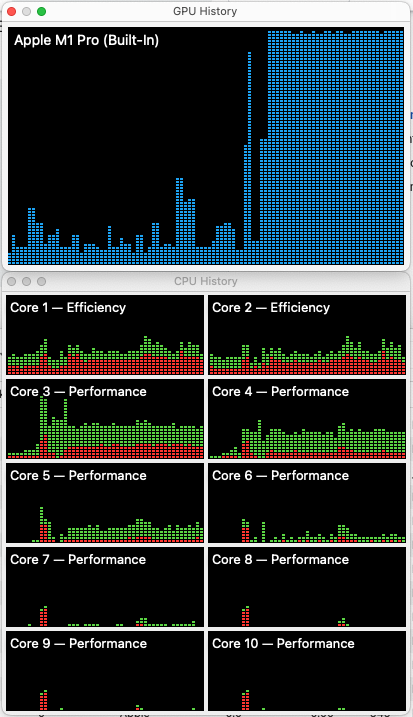
To view your CPU and GPU usage, Open Activity Monitor, then Window -> GPU History (command 4), and then Window -> CPU History (command 3).

Run the script in step 4 of the TensorFlow-Metal instructions which fires up a bunch of Tensors and builds a basic machine learning model using test data.

In your GPU history window you should see it maxing out like so:

M1 Pro GPU activity

The Code for Mandelbrot:

The Mandelbrot set is a curious mathematical discovery from 1978.  The wiki article has a great description of how it works. Basically it involves checking every point in a cartesian coordinate system to see if the value of that point is stable or diverges to infinity when fed into a “simple” equation. It happens to involve complex numbers (which have an imaginary component, and the Y values supply that portion) but Python code handles that just fine. What you get when you graph it is a beautiful / spooky image that is fractal in nature. You can keep zooming in on certain parts of it and it will reveal fractal representations of the larger view buried in the smaller view going down as far as a computer can take it.

Full view of the Mandelbrot set, generated by the code in this project:

Mandelbrot large view

Here is the naive “procedural” way to build the Mandelbrot set. Note that it calculates each pixel one by one.

def mandelbrot_score(self, c: complex, max_iterations: int) -> float:
    """
    Computes the mandelbrot score for a given complex number provided.
    Each pixel in the mandelbrot grid has a c value determined by x + 1j*y   (1j is notation for sqrt(-1))

    :param c: the complex number to test
    :param max_iterations: how many times to crunch the z value (z ** 2 + c)
    :return: 1 if the c value is stable, or a value 0 >= x > 1 that tells how quickly it diverged
            (lower means it diverged faster).
    """
    z = 0
    for i in range(max_iterations):
        z = z ** 2 + c
        if abs(z) > 4:
            # after it gets past abs > 4, assume it is going to infinity
            # return how soon it started spiking relative to max_iterations
            return i / max_iterations

    # c value is stable
    return 1

# below is a simplified version of the logic used in the repo's MandelbrotCPUBasic class:

# setup a numpy array grid of pixels
pixels = np.zeros((500, 500))

# compute the divergence value for each pixel
for y in range(500):
    for x in range(500):
        # compute the 'constant' for this pixel
        c = x + 1j*y

        # get the divergence score for this pixel
        score = mandelbrot_score(c, 50)

        # save the score in the pixel grid
        pixels[y][x] = score


Here is the TensorFlow 2.x way to do it. Note that it operates on all values at once in the first line of the tensor_flow_step function, and returns the input values back to the calling loop.

def tensor_flow_step(self, c_vals_, z_vals_, divergence_scores_):
    """
    The processing step for compute_mandelbrot_tensor_flow(),
    computes all pixels at once.

    :param c_vals_: array of complex values for each coordinate
    :param z_vals_: z value of each coordinate, starts at 0 and is recomputed each step
    :param divergence_scores_: the number of iterations taken before divergence for each pixel
    :return: the updated inputs
    """

    z_vals_ = z_vals_*z_vals_ + c_vals_

    # find z-values that have not diverged, and increment those elements only
    not_diverged = tf.abs(z_vals_) < 4
    divergence_scores_ = tf.add(divergence_scores_, tf.cast(not_diverged, tf.float32))

    return c_vals_, z_vals_, divergence_scores_

def compute(self, device='/GPU:0'):
    """
    Computes the mandelbrot set using TensorFlow
    :return: array of pixels, value is divergence score 0 - 255
    """
    with tf.device(device):

        # build x and y grids
        y_grid, x_grid = np.mgrid[self.Y_START:self.Y_END:self.Y_STEP, self.X_START:self.X_END:self.X_STEP]

        # compute all the constants for each pixel, and load into a tensor
        pixel_constants = x_grid + 1j*y_grid
        c_vals = tf.constant(pixel_constants.astype(np.complex64))

        # setup a tensor grid of pixel values initialized at zero
        # this will get loaded with the divergence score for each pixel
        z_vals = tf.zeros_like(c_vals)

        # store the number of iterations taken before divergence for each pixel
        divergence_scores = tf.Variable(tf.zeros_like(c_vals, tf.float32))

        # process each pixel simultaneously using tensor flow
        for n in range(self.MANDELBROT_MAX_ITERATIONS):
            c_vals, z_vals, divergence_scores = self.tensor_flow_step(c_vals, z_vals, divergence_scores)
            self.console_progress(n, self.MANDELBROT_MAX_ITERATIONS - 1)

        # normalize score values to a 0 - 255 value
        pixels_tf = np.array(divergence_scores)
        pixels_tf = 255 * pixels_tf / self.MANDELBROT_MAX_ITERATIONS

        return pixels_tf

Results:

Here are the results of generating Mandelbrot images of varying sizes with TensorFlow using the CPU vs the GPU. Note the TensorFlow code is exactly the same, I just forced it to use CPU/GPU using the with tf.device() method.

Time to Generate Mandelbrot at various resolutions CPU vs GPU

Between TensorFlow GPU and CPU, we can see they are about the same until 5000 x 5000. Then at 10000 x 10000 the GPU takes a small lead. At 15000 x 15000 the GPU is almost twice as fast! This shows how the marshalling of resources from the CPU to the GPU adds overhead, but once the size of the data set is large enough the data processing aspect of the task out weights the extra cost of using the GPU.

Details about these results:

  • Date: 10/29/2023
  • MacBook Pro (16-inch, 2021)
  • Chip: Apple M1 Pro
  • Memory: 16GB
  • macOS 12.7
  • Python 3.9.9
  • numpy 1.24.3
  • tensorflow 2.14.0
  • tensorflow-metal 1.1.0
Alg / Device Type Image Size Time (seconds)
CPU Basic 500×500 0.484236
CPU Basic 2500×2500 12.377721
CPU Basic 5000×5000 47.234169
TensorFlow GPU 500×500 0.372497
TensorFlow GPU 2500×2500 2.682249
TensorFlow GPU 5000×5000 13.176994
TensorFlow GPU 10000×10000 42.316472
TensorFlow GPU 15000×15000 170.987643
TensorFlow CPU 500×500 0.265922
TensorFlow CPU 2500×2500 2.552139
TensorFlow CPU 5000×5000 12.820812
TensorFlow CPU 10000×10000 46.460504
TensorFlow CPU 15000×15000 328.967006

Note: with the CPU Basic algorithm, I gave up after 5000 x 5000 because the 10000 x 10000 image was going super low and the point was well proven that TensorFlow’s implementation is much faster.

Curious how it will work on your hardware? Why not give it a try? Code for this project is available on github.

Other thoughts about running Python code on the GPU:

Another project worth mentioning is PyOpenCL. It wraps OpenCL which is a framework for writing functions that execute against different devices (including GPUs). OpenCL requires a compatible driver provided by the GPU manufacturer in order to work (think AMD, Nvidia, Intel).

I actually tried getting PyOpenCL working on my Mac, but it turns out OpenCL is no longer supported by Apple. I also came across references to CUDA which is like OpenCL, a bit more mature, except it is for Nvidia GPUs only. If you happen to have an Nvidia graphics card you could try using PyCUDA.

CUDA and OpenCL are to GPU parallel processing as DirectX and OpenGL are to doing graphics. CUDA like DirectX is proprietary but very powerful, while OpenCL and OpenGL are “open” in nature but lack certain built in features. Unfortunately on MacBook Pros with M1 chips, neither of those are options. TensorFlow was the only option I could see as of October 2023.  There is a lot of out dated information online about using PyOpenCL on Mac, but it was all a dead end when I tried to get it running.

Inspiration / sources for this post:

Posted in Code, Data, Science and Math | Tagged , , | 1 Comment

Visualizing Relationships in ChatGPT

The other day I asked ChatGPT for some recommendations for new piano pieces based on one I had just finished. To my astonishment the list it provided was pretty good and lead me to a new piece I started working on. This got me thinking, it would be fun to build a graph of these recommendations and visualize them. This morphed into a project I open sourced called Visualizing Relationships in ChatGPT.

The idea is to be able to ask ChatGPT for recommendations about various topics and visualize the relationship as a graph. Basically it can peak into ChatGPT’s “head”.  This allows us to see a few interesting things:

  1. What nodes are the most central to a given topic?
  2. Is the network graph it builds fairly redundant (self referencing) or vast and sparse?
  3. Does it make sense to a human or is it just hallucinating?

Topics analyzed:

I coded up a generalized structure so any topic can be quickly explored by implementing a new Conversation class. Here are the topics I setup so far:

  • 80sMovies – what 1980’s Movies might I also enjoy?
  • FastFood – what Fast Food Restaurants might I also enjoy?
  • PianoPieces – what are some good Classical Piano Pieces to study that are related/similar?  This was the most challenging of the four to cleanup and make consistent (see details in the project readme for more notes).
  • PrescriptionDrugs – what does GPT think people are prescribed in combination the most?


Results for ChatGPT 3.5 Turbo 5/23/2023:

80s Movies:


Fast Food Restaurants:


Prescription Drugs:


Top 10 nodes by centrality:

$ python main.py -command topnodes -topic all
Top 10 nodes found in the topic of 80sMovies:
1. The Terminator
2. Back to the Future
3. Die Hard
4. The Princess Bride
5. Blade Runner
6. Ghostbusters
7. Ferris Bueller's Day Off
8. The Breakfast Club
9. Beverly Hills Cop
10. E.T. the Extra Terrestrial

Top 10 nodes found in the topic of FastFood:
1. Taco Bell
2. KFC
3. Subway
4. Burger King
5. Wendy's
6. McDonald's
7. Popeyes
8. Arby's
9. Panera Bread
10. Hardee's

Top 10 nodes found in the topic of PrescriptionDrugs:
1. Lipitor
2. Crestor
3. Zoloft
4. Synthroid
5. Nexium
6. Plavix
7. Norvasc
8. Zocor
9. Singulair
10. Cymbalta

Top 10 nodes found in the topic of PianoPieces:
1. Clair de Lune - Claude Debussy
2. Moonlight Sonata - Ludwig van Beethoven
3. Prelude in C Major - Johann Sebastian Bach BWV846
4. Sonata in C Major - Wolfgang Amadeus Mozart K545
5. Prelude in E Minor - Frederic Chopin
6. Prelude in D-flat Major Raindrop - Frederic Chopin
7. Sonata in A Major - Wolfgang Amadeus Mozart K331
8. Fur Elise - Ludwig van Beethoven
9. Nocturne in E-flat Major - Frederic Chopin
10. Rhapsody in Blue - George Gershwin


Challenges:

  • Along the way I ran into some challenges in getting ChatGPT to spit out data in a consistent format that is machine parsable. It wants to be chatty and it wants to seem “human” so there is a lot of variation in both its return format. It also varies how it describes what should end up being the same node in the graph (KFC vs Kentucky Fried Chicken for example).  If you are interested in more details on that see my post on Getting back lists of data from the ChatGPT API.
  • The API is SLOW… it takes about 4 minutes to get the complete data download per topic.
  • NOTE: An OpenAI API key is required, and to get one you have to input a credit card. However, it is pretty affordable at this scale. So far on this entire project with all the test calls and trial and error I’ve spent a grand total of just $0.32.

Next Steps:

When ChatGPT-4 API is enabled for my account I will re-run the program and compare results.

Build out a web front end so conversations can be had on the fly.

ChatGPT doesn’t like to provide long lists of data, but it will provide lists of things 20 at time, which is enough to build a nice looking graph. In a sense you have to coax it into paginating the output.

My goal at this point was to launch the tool with fairly benign topics. Other fun topics might be:

  • TV shows from 2010-2020 (or other decades)
  • Good places to work
  • Rock bands
  • Popular careers and related careers
  • Programming languages
  • Sci-fi books

Use for AI research / controversial topics:

Many AI researches have discovered clever ways of trick ChatGPT into saying inappropriate things or provide instructions on how to harm others (aka “jail breaking”).  I find many of these pretty hilarious, although the real world implications of an AI teaching us how to harm each other are not so great. For now I stayed away from such topics, but this tool could potentially be used in combination with a jail break to extract noteworthy data.

AI researchers are also interested in what biases are inherent in ChatGPT (racial, gender, cultural, etc). This tool could also be used to help uncover biases in its data relationships.

Here are some example controversial topics that could be added later:

  • Street drugs (may take some jail breaking).
    • Hey ChatGPT, what are the top 10 street drugs in use in the USA?  If a person is on {crack}, what other street drugs might they enjoy??
  • Explosives (may take some jail breaking).
    • Hey ChatGPT, what are the top 10 explosives?   If I like {dynamite}, what other explosives might I enjoy??
  • Historical figures (see if they are all white men).
    • Hey ChatGPT, who are the top 10 historical figures during the civil war era? If I like {Abe Lincoln}, who else might you recommend during the civil war ear??
  • Famous people (see if it is USA centric or includes global celebrities, people of color, etc).
    • Hey ChatGPT, who are the top 10 celebrities from the 1990s?  if I like {Patrick Stewart}, who else might you recommend from the 1990s??
  • Travel destinations to safe countries (all white Christian countries?).
    • Hey ChatGPT, what are the top 10 travel destinations?   If I like going to {France} where else might you recommend for a vacation??
Posted in Code, Fun Nerdy, Science and Math | Tagged , , , , | Comments Off on Visualizing Relationships in ChatGPT

Getting back lists of data from the ChatGPT API

I’m working on a project where I’m trying to harvest lists of data from ChatGPT via its API. This post applies to the gpt-3.5-turbo model called via the API. I don’t have access to the GPT 4.0 API yet, but I’m on the waitlist.

When I first looked into it, I was excited when I learned that ChatGPT can return JSON (as opposed to regular text). This is really cool when it works. You can even tell it the specific format you want and it will do it.

An example prompt for getting a list of piano pieces:

Tell me the top 10 classical piano pieces played today. Provide the response in JSON only, following this format:
[{
"name": {name of the piece},
"composer": {composer},
"difficulty_level": {difficulty level}
}, ...]

ChatGPT returning JSON

However, in practice using API calls 80% of the time it does it, the other 20% of the time it says something like:

“Sorry, as an AI language model, I am not able to provide a JSON response only.”

This is in spite of the fact that I TOLD IT to return JSON and NOTHING else. So it acts a bit difficult at times, and you never know which one you will get… which seems very non-computer like but it is designed to vary the output to seem more human like.

For a script like this that makes repeated calls, having the output format alternate between text and json is unacceptable.
So the solution was to tell it to return a plain list.

Tell me the top 10 classical piano pieces played today. Provide the response with one answer per line, no leading numbers or symbols, and no other commentary

This approach provides consistent results of simple lists.

ChatGPT list results

This way the format is consistent, but the data still needs cleansing. Sometimes it numbers the items (1., 2., 3…) or adds a hyphen at the start of each line. Sometimes it adds a helpful clippy like message before the list (“Sure I can help you with that”), which needs to be filtered out.

Here is a simplified version of code I used, written in Python:

try:
    # this code calls the ChatGPT API
    result = call_open_ai(self.opening_conversation)
except Exception as e:
    print('Unable to get initial data from OpenIA')
    raise e

items = list()
try:
    # get the content of the response from ChatGPT
    raw_answer = result['choices'][0]['message']['content']

    for line in raw_answer.splitlines():
        line = clean_line(line)

        if skip_line(line):
            continue

        items.append({'name': line})

    if not items:
        print('Nothing came back?')
        print(raw_answer)

    return items

except Exception as e:
    print('Unable to parse JSON as string')
    print('Raw result was ' + str(result))
    raise e

def clean_line(self, line):
    """
    Cleanup string data from ChatGPT.
    :param line: string from ChatGPT
    :return:
    """

    line = line.strip()

    # clean up the 'bullets' it adds to lists
    if line.startswith('- '):
        line = line[2:]

    # clean up the numbering even though WE TOLD IT NOT TO!
    for i in range(1, 100):
        if line.startswith(str(i) + '. '):
            x = len(str(i)) + 2
            line = line[x:]

    # if the last character is a ' or ", remove it
    if line.endswith('"') or line.endswith("'"):
        line = line[:-1]

    # replace all accents with regular ASCII characters to smooth out variations
    str_normalized = unicodedata.normalize('NFKD', line)
    str_bytes = str_normalized.encode('ASCII', 'ignore')
    line = str_bytes.decode('ASCII')

    return line


def skip_line(self, line):
    """
    Helper method to tell if this line is chatter from ChatGPT that can be ignored.

    :param line: string returned from ChatGPT
    :return:
    """

    # skip empty lines
    if not line:
        return True

    # it is trying to be friendly, but we don't want this garbage in the data
    if line.startswith('Sure, I') or \
            line.startswith('Sure I') or \
            line.startswith('Sure, here') or \
            line.startswith('Sure here') or \
            line.startswith('Here are') or \
            line.startswith('Okay, here') or \
            line.startswith('Okay here'):
        return True

    return False

One thing I found is if you ask it for too much data, it won’t return a result. You have to trick it into paginating it, or getting a chunk at a time.

This is part of an open source project I started called Visualizing Relationships in ChatGPT.  Stay tuned for more posts about my findings.

Posted in Code, Data | Tagged , , | Comments Off on Getting back lists of data from the ChatGPT API

How to Stop/Start an AWS EC2 instance using AWS CLI command line

In my experience the smaller the AWS EC2 instance the more often it freezes / completely locks up. Something goes wrong inside the AWS infrastructure and poof, no ability to SSH or do anything with it. This is regardless of system load, memory status, the type of application, etc. The frequency of the crash is inversely proportional to the instance size.

  • t3.micro -> 1-8 times a month (free tier instances)
  • t3.medium -> 1-3 times a month (on a commercial Django product I maintain)
  • t2.xlarge -> maybe once a year if ever (another client of mine running a high traffic website)

One “solution” is to login to the AWS Console and stop / start the instance. That is a pain because 1) I have MFA setup, 2) the AWS console is a beast to navigate.  It can also take time for the instance to stop (15 minutes worst case) or require a force stop, before it can be restarted.

So I decided to figure out how to query the server status with the AWS CLI, and if needed stop/start it from the command line. This procedure is locked down to my IP, so even if the IAM user credentials leaked, it would have to be from my machine. I’m pretty happy with this balance of ease and security.  If your EBS volume is encrypted (which it should be) there are a few important yet obscure things to pay attention to as you proceed with the configuration.

In this guide I’ll show you how I use AWS cli to stop/start an EC2 instance from the command line using an IAM user with the right permissions, including support for encrypted volumes.

1) Install the AWS CLI tool if you haven’t already.

2) In the AWS Console, under IAM, create an IAM user, name it something like ec2-stop-start. Get the new user’s credentials (Access Key ID and Secret Access Key) and save them somewhere safe.

If your EBS Volume is encrypted, find the key it uses under the EC2 -> EBS Volume configuration. If this is a customer managed key, under AWS KMS Console, add the new IAM user to the key under Key Users.

3) In the AWS Console, under IAM create a policy that allows querying EC2 status and stop/starting instances.

This policy will be locked down to your local IP!  For me this works great because my ISP changes my IP once ever couple of years. The IP will also change if the MAC address on my wifi router changes (this is a trick to force a new IP to be allocated).

IAM policy outline:

{
    "Version": "2012-10-17",
    "Statement": [
        {
            "Sid": "0",
            "Effect": "Allow",
            "Action": [
                "ec2:StartInstances",
                "ec2:StopInstances"
            ],
            "Resource": "arn:aws:ec2:*:*:instance/*",
            "Condition": {
                "IpAddress": {
                    "aws:SourceIp": "xyz.0.0.1/32"
                }
            }
        },
        {
            "Sid": "1",
            "Effect": "Allow",
            "Action": [
                "ec2:DescribeInstances",
                "ec2:DescribeInstanceStatus"
            ],
            "Resource": "*",
            "Condition": {
                "IpAddress": {
                    "aws:SourceIp": "xyz.0.0.1/32"
                }
            }
        },
        {
            "Sid": "2",
            "Effect": "Allow",
            "Action": [
                "kms:Encrypt",
                "kms:Decrypt",
                "kms:ReEncrypt*",
                "kms:DescribeKey",
                "kms:GenerateDataKey*",
                "kms:GetPublicKey",
                "kms:GetKeyPolicy"
            ],
            "Resource": "arn:aws:kms:us-west-2:0000:/xyz",
            "Condition": {
                "StringEquals": {
                    "kms:ViaService": [
                        "ec2.us-west-2.amazonaws.com"
                    ]
                }
            }
        }
    ]
}

Summary of each block:

Sid 0 -> EC2 allow stop/start from YOUR IP
Sid 1 -> EC2 allow describe instances from YOUR IP
Sid 2 -> Grant user access to encryption keys via EC2

Make sure to change the following:

  • Change the aws:SourceIP to be YOUR PUBLIC IP, which is in two places.
  • If your EBS volume is encrypted, change the region under the kms:ViaService block to the region your EC2 instance is actually in. Also change the `arn:aws:kms:us-west-2:0000:/xyz` value to be the ARN of the actual key that goes with the EBS volume.
  • Note – you don’t need the section with "SiD": "2" if your EBS volume is not encrypted. This section gives the IAM user the ability to work with the encryption key when requesting on behalf of another service (that is what the kms:ViaService tag does).
  • Note – this policy gives access to ALL EC2 instances under the account, but maybe that is way too much? Customize the Resource blocks as needed for your situation.

4) Associate the policy you just created with your ec2-stop-start user in the IAM control panel.

5) Add the IAM user credentials in your local aws credentials file (~/.aws/credentials), using the profile named
aws_ec2_stop_start:

[aws_ec2_stop_start]
aws_access_key_id = ******
aws_secret_access_key = ******

6)  Find your server’s instance ID in the EC2 control panel (something like i-00000).

7) Try querying the instance status:

$ aws ec2 describe-instances --region us-west-2 --profile aws_ec2_stop_start --output text

$ aws ec2 describe-instance-status --instance-ids i-00000 --region us-west-2 --profile aws_ec2_stop_start --output text

(change the region, and instance-ids parameters for your case, output can be text, table or json)

8) Try running stop start with the dry-run argument:

$ aws ec2 stop-instances --instance-ids i-00000 --region us-west-2 --profile aws_ec2_stop_start --dry-run

$ aws ec2 start-instances --instance-ids i-00000 --region us-west-2 --profile aws_ec2_stop_start --dry-run

(again, change the region, and instance-ids parameters for your case)


9) And for real, with out the –dry-run argument:

# STOP INSTANCE FOR REAL - MAKE SURE YOU KNOW WHAT YOU ARE DOING!!
$ aws ec2 stop-instances --instance-ids i-00000 --region us-west-2 --profile aws_ec2_stop_start

# if you need to force it
$ aws ec2 stop-instances --instance-ids i-00000 --region us-west-2 --profile aws_ec2_stop_start --force

# at this point you can query the status
$ aws ec2 describe-instances \
    --region us-west-2 --output text --profile aws_ec2_stop_start \
    --query 'Reservations[*].Instances[*].{Instance:InstanceId,Instance:State}'

# START FOR REAL
$ aws ec2 start-instances --instance-ids i-00000 --region us-west-2 --profile aws_ec2_stop_start --output text


Troubleshooting:

If the instance is not starting (stuck in pending), describe-instance-status shows:

"StateReason": {
  "Message": "Client.InternalError: Client error on launch",
  "Code": "Client.InternalError"
},

This might be because the EBS volume is encrypted. In that case double check the Sid 2 block in the IAM profile above, and see this AWS post for details on fixing that, and more about IAM policies for keys and the kms:ViaService configuration setting. The notes above work for me, but you may need to fiddle with the settings to get it to work. Again, if your volume is encrypted with a customer managed key, under AWS KMS Console, add the IAM user you created in step 2 to the key under Key Users.

Links to AWS CLI EC2 command docs:

AWS CLI has a lot of extra command line options you might want to get familiar with.  See the docs here:

Posted in Sys Admin, Work | Tagged , | Comments Off on How to Stop/Start an AWS EC2 instance using AWS CLI command line

Querying Complex Data in Django with Views

Django has a powerful ORM, but like any ORM it suffers when querying data that has complex relationships. Django supports foreign keys and many to many relationships out of the box with ease. Sometimes a report or data feed has half a dozen joins and calls for representing the data slightly differently than the way the models are defined.

I’m thinking of a summary report where you need to group rows by month or year, but also pull in related rows that are several joins away.

Choice 1 – bend the Django ORM to your will, but accept the limitations.

By default the Django ORM does not do any joins. When application code accesses related entities or child sets it will make additional calls to the database on the fly. This can really slow down an app, especially if there are loops involved.

To improve on that the Django ORM has `select_related()` for a standard one to one join. It also has `prefetch_related()` for sets (many to many) where it does a second query that gets associated matches.

Under the hood Django pulls all columns in the SELECT clause it builds. It is trying to hydrate a model instance for each row so it grabs everything. Pulling unneeded data slows down the call and expands the memory footprint needed for the request. To solve that you can use `values()` on the query to limit what columns are returned.

Django also allows `GROUP BY field_x HAVING …` queries, which I’ve written about.

For most things you can get it working with some trial and error and Stack Overflow as your co-pilot.


Choice 2 – write your own SQL query and run it with cursor.execute():

Wait a sec… what is SQL? This is the year 2020. Nobody really knows SQL anymore. All they know is JavaScript.

I’m half joking here but plenty of people would argue writing SQL in your application code is a big mistake. In 2005 I don’t think anybody would have guessed that is how the world would be 15 years later.

Raw SQL can be hard to maintain. After-all it’s a huge magic multi-line string. From a maintenance perspective it exists independent of the application’s models and migrations. It is kind of hanging out, like a rat in the wall. It is great for one-off scripts and rare corner cases, but I would not want to rely on raw SQL for day to day Django work.

Note that with raw SQL there is also a small security risk in the form of the SQL injection attack. This can happen if you (or future you, or the new intern) forget to parameterize any inputs.


Choice 3 – go with a database level view:

A database view (supported in MySQL and Postgres, among others) is basically a SELECT statement that gets saved in the database. Views operate like a read only table. A view can do all sorts of clever things like joins, generate new columns based on the row level values, aggregate functions etc.

The nice thing about setting up a view and pointing Django to it is, Django can query it like an ordinary table. In fact Django doesn’t even know it is really a view under the hood. You may not edit the rows in the view though.


How to get Django to work with views:

Note this is working for me with Django 2.2 and Python 3.7.

First design your view in SQL to get the bugs worked out.

Next setup a new model that mirrors the columns. For views, you can put them in models.py, but I use models_views.py so it is clear it is a view and not a regular model.

Make sure to set managed = False.

from django.db import models, NotSupportedError

class ExampleView(models.Model):
    name = models.CharField(primary_key=True, editable=False, max_length=100, blank=True, null=True)
    status = models.CharField(max_length=25, null=False)
    amount = models.DecimalField(max_digits=24, decimal_places=6, blank=True, null=True)

    def save(self, *args, **kwargs):
        raise NotSupportedError('This model is tied to a view, it cannot be saved.')
    
    class Meta:
        managed = False
        db_table = 'example_view'    # this is what you named your view
        verbose_name = 'Example'
        verbose_name_plural = 'Examples'
        ordering = ['name']

Create the migration:

$ python manage.py makemigrations

This will generate a migration file under that app’s migrations directory, something like migrations/00xx_exampleview.py.

Open that file and add your view’s create statement. This is an example for MySQL:

dependencies = [....]

# put your SQL to create (replace) the view here, below the dependencies line
sql = """CREATE OR REPLACE SQL SECURITY INVOKER VIEW example_view AS
SELECT
    name,
    status,
    sum(total) as amount
FROM some_table 
GROUP BY name, status;"""

operations = [
   migrations.RunSQL(sql),   # add this line so it runs as part of the migration
   migrations.CreateModel(
   name='ExampleView',
.....

Run your migrations as normal:

$ python manage.py migrate


Use your view model as normal:

example_rows = ExampleView.objects.filter(name='test').all()


When to use each choice in my opinion:

Most of the time I try and get the Django ORM to do the job. If that fails or is getting really crazy, I opt for choice 3 – the database view since that keeps things so much cleaner. I use raw sql for temporary scripts, prototypes, build and throw away kind of stuff where nobody cares about maintenance or clean code.

Pros of using views:

  • Can greatly simplify application code where nested loops or complex joins would be required.
  • Leverage the power of the database engine to provide data to your application.

Cons of using views:

  • Any rows retrieved from a view cannot be saved back to the database, they need to be treated as read only objects.
  • Anecdotally, I’ve seen comments in Stack Overflow where people complain that views are slower than running the equivalent query. So your mileage may vary. If you do run into that, dropping back to raw SQL is a feasible work around.
Posted in Code, Data | Tagged , , , | Comments Off on Querying Complex Data in Django with Views

Mac vs Dell for Software Development with Cost Breakdown 2020

My 2015 Mac Book Pro is getting a little old and tired. I recently joined a project that uses a docker-compose configuration that spins up 8 separate containers. It barely works on my Mac. It takes a long time to start and performance is terrible system wide while it is running. So it was time for me to bite the bullet and either get a new Mac, or look into a Windows or Linux laptop.

2015 Mac Book Pro 13

TLDR;

  • Get the Mac Book Pro if you have the money (or it is your employer’s money, hehe).
  • Get the Dell if you want maximum power for the price and care about replaceable parts.
  • Reformatting the Dell to Linux is a sweet spot for computing power and ease of development if your use case supports it.
  • If you go with the Dell don’t kid yourself that you are saving money. Your time is very valuable as a software developer. Windows will waste it here and there (windows update churning in the background, command line quirks, hard to find certain packages, etc). That isn’t to say that macOS is free of these annoyances, they are there, but to a lesser degree.

You know, I really hate this trend of bigger and bigger virtual images to run what amounts to a web server and a database.  For a large team on a project with dozens of dependencies it does make sense. However, when I’m developing solo I get by just fine with local packages.

I’ve been holding off on a new Mac because in 2016 Apple went a few steps backwards. The controversial touch bar and the redesigned keyboard have gotten horrible reviews. At the same time their prices keep going up but performance lags. I will really miss the magnetic charging port. It’s pure genius, why remove it? It has saved my laptop from hitting the floor a few times. Did you know a replacement charger for a 2015 Mac Book Pro is about $75!?

In bargaining with myself, yes I could live without a physical escape key and a crappy keyboard because most of the time I hook up to an external monitor and use the Apple Magic Keyboard and Magic Trackpad 2. These are 2-3x the price of Windows peripherals, but they are really awesome. Every Windows touchpad I’ve tried jumps around like crazy and has a rough texture. The Magic Trackpad 2 is as accurate as a mouse and is smooth like glass.

apple magic keyboard and trackpad

Faced with the prospect of buying all new dongles and having to fight through the bugs involved with macOS Catalina (which I’m currently holding off on), I took a look at my old friend the Dell Outlet.

The Dell Outlet sells machines that have been returned for whatever reason. Dell is just trying to get rid of them. They are discounted way below retail. The outlet runs specials on a regular basis and offers free shipping. I used to work at a company where everyone ran Dell Outlet hardware. We purchased from them over 50 times. Most of the stock is labeled as “scratch and dent”, but I never saw one that I could tell had any problems.

When looking at Dell the first thing I did was rule out the Inspiron class completely, which is the cheapest level. I looked closely at XPS and Precision, but the prices really jump up. I ended up going with a middle of the road business line, the Vostro. It comes in a 14” model which is about perfect. Mine came with a regular Intel graphics chip but if you dig around on the outlet you can find ones with Nvidia or Radeon graphics on board which is a nice bonus if you do the occasional gaming session.

In terms of OS, you can generally reformat a Dell to run Linux which I recommend. Sometimes you’ll run into a boot issue or device driver error. If you are buying on the outlet that model has probably already been out for long enough that you can get help by googling.

When it comes to Windows the Pro version is the way to go. With the Pro version BitLocker is included, which offers full drive encryption. As a developer you’ll want to activate that if you have anything beyond cat pictures on your machine. Most of the Dell business machines come with Windows Pro by default.

Here is the breakdown between my new Vostro and a middle of the road 2019 Mac Book Pro:

Dell Vostro 14” – 5481 2019 Mac Book Pro 13” 
CPU Intel i7-8565U 1.8 – 4.6 GHz Quad Core i5-8279U 2.4 – 4.1 GHz Quad Core
RAM 16GB 2666MHz DDR4 8GB 2133MHz LPDDR3
Storage 512GB SSD 512GB SSD
Screen 14 inch FHD (1920 x 1080) Anti-Glare LED-Backlit Non Touch Display Retina Display
Ports Ports galore (USB, HDMI, SD Card, Headphones, RJ-45) Four Thunderbolt 3 Ports
Replaceable / Upgradable Parts Yes No
Realistic Battery Life While Doing Software Development 3-4 hours 7-10 hours
Price $646.00 $1,999.00

Here is the score card:

Winner Notes
CPU Mac The Mac’s i5 is actually a bit faster than the Dell’s i7 according to this breakdown.
RAM Dell The Dell has twice as much memory which is super important for running virtual machines.
Storage Dell The Dell’s HDD is replaceable while Mac’s is soldered to the board.
Screen Mac Retina displays are awesome, but if you dock and leave the lid closed it is moot.
Ports Dell Dell has the old school USB / HDMI ports, the Mac requires dongles which you have to purchase on your own.
Replaceable / Upgradable Parts Dell The Dell is designed to have the hard drive, battery, and even RAM upgraded. The Mac is a sealed product.
Battery Mac The Mac battery is way better. This is moot when you dock. Still I do get “range anxiety” when I’m on battery.
Price Dell You could buy a new Dell every year, compared to a new Mac every 3-4 years.
Development Experience Mac I have to admit the Mac experience is a lot smoother.

Dell with Linux comes close for some use cases.

Good for developing on complex containerized projects Dell I doubt 8GB of RAM is enough.

So which is better, Mac or Dell?

The Mac wins, begrudgingly, but it depends. Honestly they both work and a good developer should be able to get their job done on Mac, Linux, or Windows without a problem.

However, I’m not so sure the 13” MPB above with only 8 GB of RAM would handle the huge dockerized development environment I mentioned at the beginning of this post. For an extra $200 you can get a 13″model with 16GB of RAM. Or you could jump up to the 15” 16″ MBP which starts at $2,399. Personally I don’t want to lug around a $2400 machine nor a 15” 16” laptop.

Is the Mac really worth an extra $1353?

Yes. If the Mac “experience” saves you 1 minute a day it will pay for itself. Here’s the math:

  • A software developer’s fully loaded cost is $100/hr – benefits, payroll taxes, retirement plan, paid time off, training, hourly wage, etc.
  • In terms of developer time, it would take a savings of 13.5 hours over the life of the laptop to make up for the extra price of the Mac. (1999 – 646) / 100 = 13.5
  • The laptop lasts 3 years.
  • There are 261 working days in a year.
  • [ 13.5 hours / (261 (work day / year) * 3 years) ] * 60 minutes / hour = 1.035 minutes / work day
  • Windows updates alone will rob you of at least 1 minute per day.

They why did I buy a Dell?

For one thing, I already have a Mac I really like. I needed something cheap and powerful for this one particular project. That is where the Dell comes in. For $646 I’m able to allocate 2 cores and 8GB to the docker-composer instance which makes it just as fast as regular local development (even though the fans do come on frequently).

This situation is causing me to jump between keyboard layouts, but I just can’t let go of my Mac on my other projects! Turns out as a contractor I need both Windows and Mac in my toolbag.

In terms of overall budget for your workstation also consider a sit-stand desk and nice chair. I’ve shared my setup which I still love, but there are many new sit stand desk companies on the market and they are getting more and more affordable all the time.

In my review of Windows development I am glad to say it is getting a lot better for Python / PHP projects. Microsoft is building an open source terminal app. Then there is Windows Subsystem Linux, which is like having a tightly integrated Linux VM running all the time under the hood. Visual Studio gets a lot of great reviews. I’m still using IntelliJ (WebStorm / PyCharm, etc) but I look forward to trying it out soon.

What I’ve learned is: Apple has everyone where they want them, even a pragmatist like myself.

Posted in Application Development, Work | Tagged , , , , | 6 Comments

Why is WordPress so Popular?

WordPress is arguably the most successful “killer app” of the web in the last 10 years.  Since it is written in PHP and has a history of security vulnerabilities, most “software brains” dismiss it as a toy. While it is certainly not a monument to computer science, it does its job really well. It has grown up from a simple blogging platform into a powerful CMS capable of running the most complex and high traffic websites.

Consider these astounding stats – as of 2019 WordPress runs 33.5% of all websites, and 60.4% of all CMSs [1].

Given its success WordPress has some valuable lessons to offer for anyone working on a web based platform. Here is why I think WordPress is such a huge hit:

WordPress Why So Popular?

1) They got into a hot area:

Back in 2003 they hit on an area that was prime for growth – online publishing and marketing. To some extent there is still a good deal of growth to be had in that market.

2) The plugin and theme architecture was genius:

From the early days the WordPress architecture included extensible plugins themes.  It allowed other developers to build sites that do what they want using WordPress as foundation. Over time a large community of theme and plugin developers grew around WordPress. Presently there are over 55,000 plugins [2] and 31,000 themes available.

3) WordPress is a cheap and easy option that scales well:

A big factor in WordPress’s success is the price – it is free. The WordPress core itself is open source. Themes are abundantly available for under $40. Many plugins are free or relatively inexpensive compared to development efforts.

Getting a website going that looks professional and has a few bells and whistles is fast and dirt cheap.

Since WordPress uses PHP and MySQL hosting it is also simple and relatively cheap. Plans under $10/month are able to power sites with significant traffic.

At the same time WordPress’s low maintenance costs (no renewal fees) and its robustness makes it a good fit for high profile websites looking to spend up to seven figures on development.

4) WordPress is open source, but unusual in that it cares about its users:

I think the main reason WordPress has done so well is due to how strict they are about keeping backward compatibility.  It is one of the few platforms I’ve ever seen that accounts for their existing user base when determining what features to add, what to deprecate, and how to refactor.

The lesson all software developers can learn from WordPress is that their huge success steams from a simple philosophy – they put their users first. This is opposed to the more common philosophy of building overly complex technology “solutions” at everyone else’s expense.

Many open source projects are downright nasty to users… The typical mentality for an open source project is “it’s free screw you”.  They constantly refactor or even wholesale re-write their code.  Nobody enjoys keeping up with that. Popular web frameworks like Rails and Symfony barely resemble their initial versions. This alienates people fast.  Keeping up with refactoring takes time away from building features paying customers need.  My observation is a lot of the times the refactors appear to be a matter of personal preference or a whim vs something that could be tied to a functional requirement.

Yes, WordPress kept a lot of the cruft around. But they were right to. They correctly realized that refactoring code for the sake of gold plating it runs counter to what their customers actually need – working software that doesn’t require much upkeep.

5) As a CMS, WordPress is pretty amazing:

WordPress isn’t just a blogging platform anymore, it is a fully featured CMS.

The recent WordPress 5.0 release included the Gutenberg editor that allows customizable content modules. Prior to this, and now in combination with it, the Advanced Custom Fields (ACF) plugin can be used to create on the fly CRUD forms in the admin.

WordPress also shines in how it handles media uploads. Getting a correctly sized graphic uploaded is still a huge pain point for most non-technical users. WordPress comes with a built in crop / resize tool. It also has a way of configuring the crop types for an image (mobile, tablet, desktop) and allows overrides so any user can make a page look good on desktop, tablet and mobile without needing a designer.

6) WordPress dances to its own beat:

Another reason they did so well is the WordPress team consistently ignores the criticism from the technical purist camp. Sure they are based in PHP, they use tons of global functions, the database design is horribly inefficient, but so what, it’s a killer app!  If they got really into performance or cleaning up all the messy bits, the would have lost sight of their customer base.


References:

[1] https://w3techs.com/technologies/overview/content_management/all
[2] https://wordpress.org/plugins/
[3] https://sceptermarketing.com/how-many-wordpress-themes/
[4] https://en.wikipedia.org/wiki/WordPress#Vulnerabilities

Posted in Application Development | Tagged , | Comments Off on Why is WordPress so Popular?